
Website Time Tracker: How to See Exactly Where You Spend Hours Online
You know you are spending too much time online — but on which sites? A website time tracker reveals the truth. Here is how to pick the right one and what to do with the data.
Quick: how much time did you spend on YouTube yesterday? What about Reddit, Twitter, or that news site you keep refreshing? If you cannot answer confidently, you are not alone. Most people have no idea how they spend their browsing time — and the reality is almost always worse than they think.
What Is a Website Time Tracker?
A website time tracker is a browser extension that runs in the background and records how long you spend on every website. The best ones categorize sites automatically (Social Media, Entertainment, Productivity, etc.) and visualize your data in daily and weekly reports. Think of it as Apple Screen Time, but for your Chrome browser.
Why Built-In Browser History Is Not Enough
Chrome's built-in history shows you which sites you visited, but it tells you nothing about duration. You might have visited stackoverflow.com 30 times today — but was it for 5 minutes total or 3 hours? History does not track active tab time, idle time, or give you any categorization. A proper tracker fills all of those gaps.
What to Look For in a Website Time Tracker
- Automatic tracking with zero setup — it should start the moment you install it
- Accurate active-time detection that pauses when you leave the computer
- Smart site categorization so you do not have to manually label 200 websites
- Hourly breakdowns to see exactly when your focus drops during the day
- Weekly overview to spot patterns and trends across multiple days
- Local-only data storage — your browsing data should never leave your device
How Aware Pro Tracks Your Website Time
Aware Pro monitors the active tab in your browser and logs seconds per domain. It uses Chrome's idle detection API to automatically pause tracking when you step away from the keyboard. This means the data is accurate — no inflated numbers from tabs left open in the background.
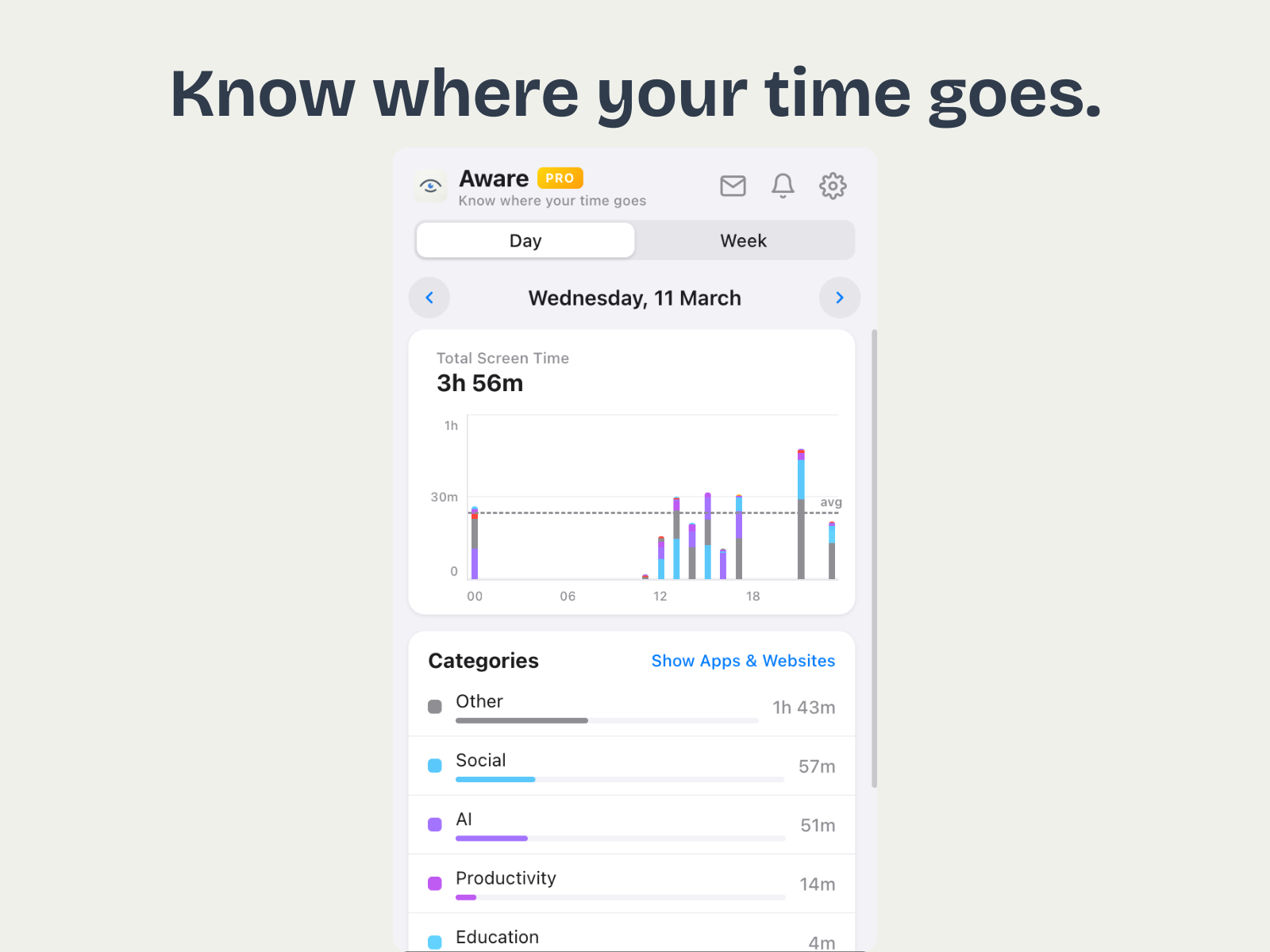
Every site is automatically placed into a category using a built-in database of 200+ popular domains. YouTube goes under Entertainment, GitHub under Development, ChatGPT under AI, and so on. Sites it does not recognize get filed under "Other," and the categorization keeps improving with updates.
Reading Your Time Data: Day vs. Week View
The Day view shows a 24-hour stacked bar chart. Each bar represents one hour of your day, color-coded by category. You can immediately see that your morning was productive (blue and green bars), then you fell off a cliff at 2pm (red and orange bars for social media and entertainment).
The Week view zooms out to show Monday through Sunday. This reveals patterns: maybe you always lose time on Wednesdays. Maybe your Fridays are twice as distracted as your Tuesdays. This kind of insight is impossible without a proper tracker.
Privacy: Where Does Your Data Go?
This is where most trackers fail. Many send your browsing data to a server so you can "access it from any device." That means your complete browsing history sits on someone else's computer. Aware Pro stores everything locally in Chrome's storage. No accounts, no cloud, no server. Your data never leaves your machine.
Getting Started Takes 30 Seconds
Install Aware Pro from the Chrome Web Store, and it begins tracking immediately. No signup, no configuration, no onboarding wizard. After a day, click the extension icon to see your first report. After a week, you will have enough data to start making real changes to your browsing habits.