 Productivity
Tab Mosaic
Tile tabs. Keep groups.
Tile tabs across monitors, keep your tab groups
- New · no ratings yet
- v1.0.0
- 621 KB
- updated Oct 2026
- by Ilias El Barhoumi
 Add to ChromeFree
See it in action
What it does.
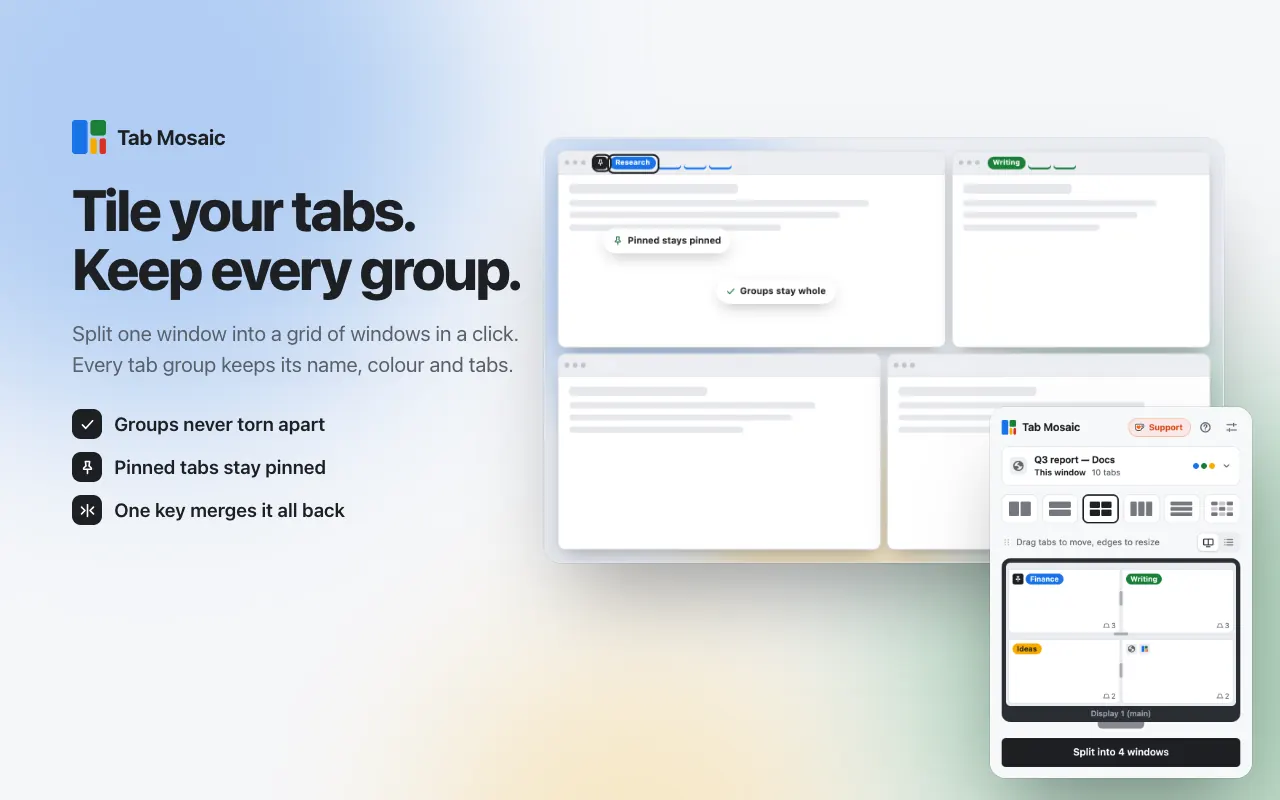
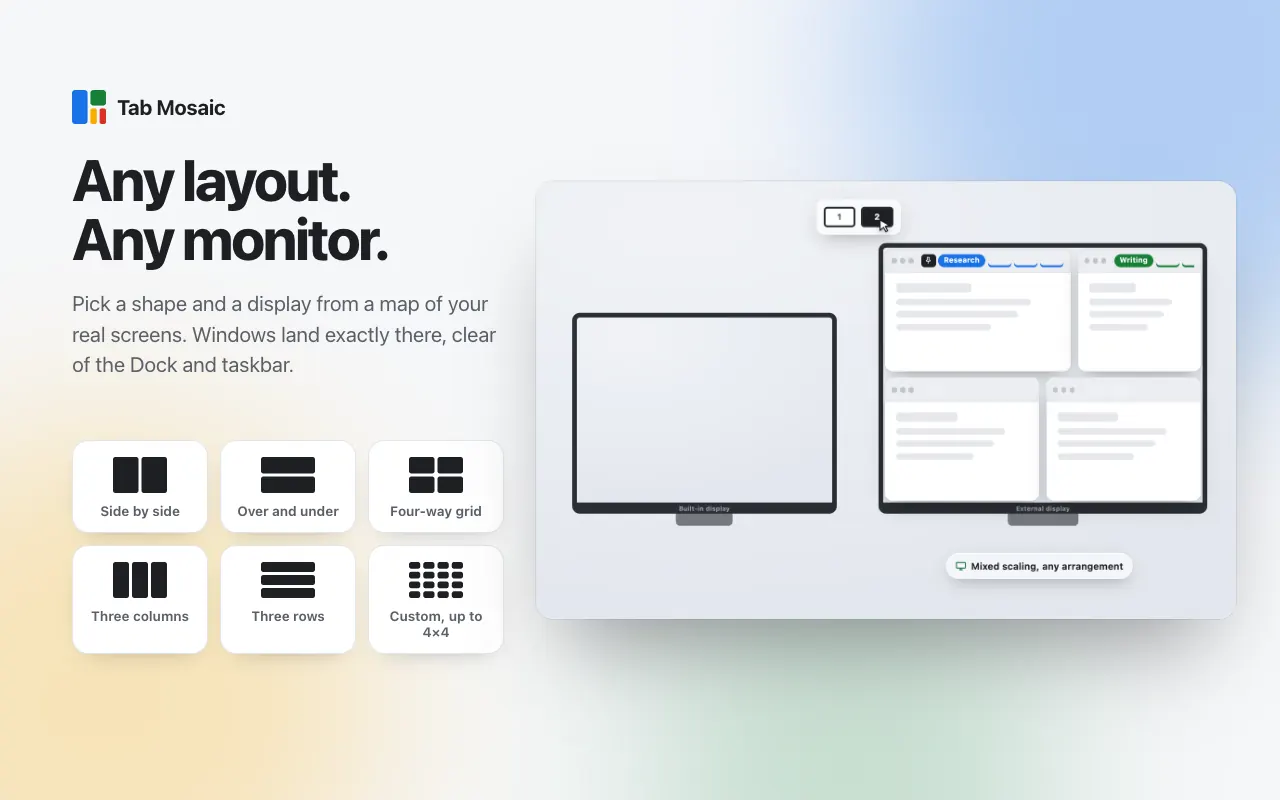
Tile a window's tabs into side by side, over and under, three columns, three rows, 2×2 or any grid up to 4×4
Tab groups move whole, with their name, colour and collapsed statea group is never torn across windows
Pinned tabs stay pinned
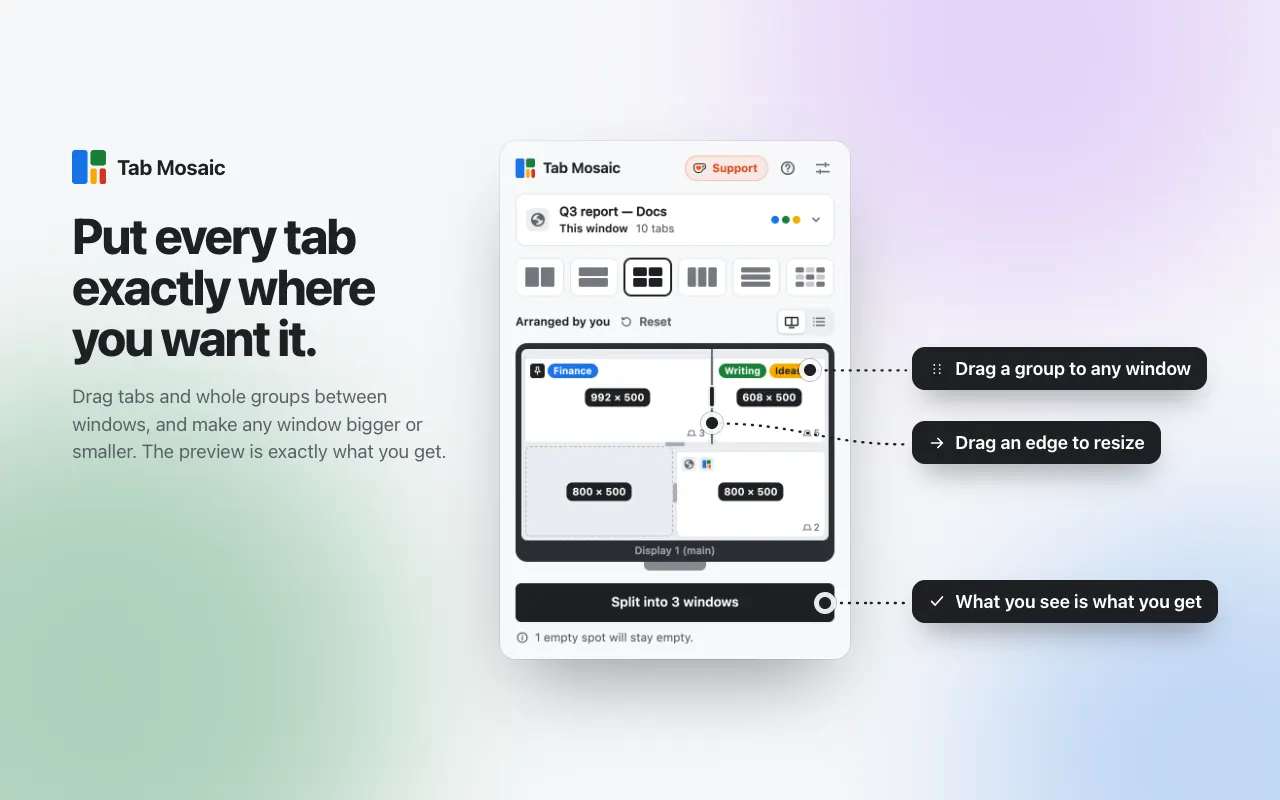
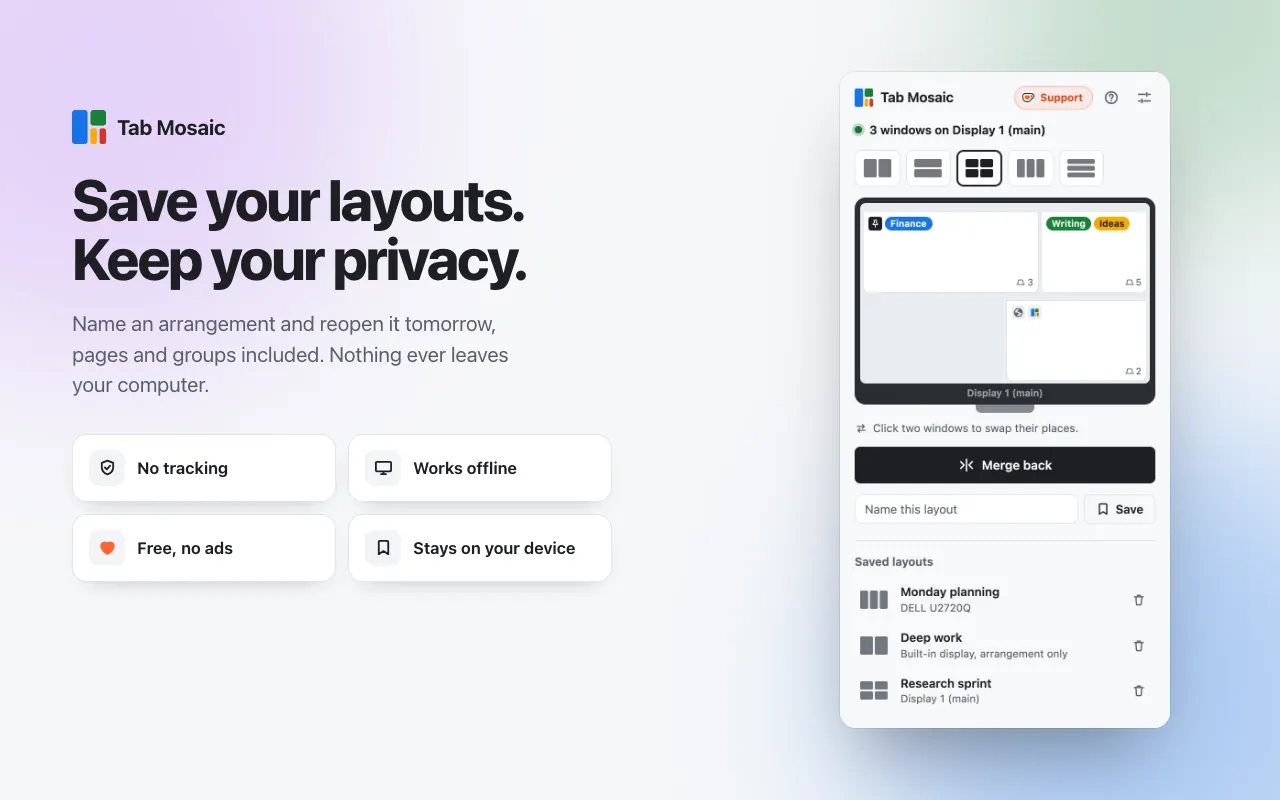
Live preview of your real screen: what you see is exactly what the split makes
Arrange by hand: drag tabs and groups between windows, drag edges to resize, or use the keyboard and list view
Pick any monitor from a map of your real arrangement, including monitors left of or above the main one and mixed scaling
Windows fill the screen exactly, clear of the taskbar, Dock and menu bar, with an optional gap
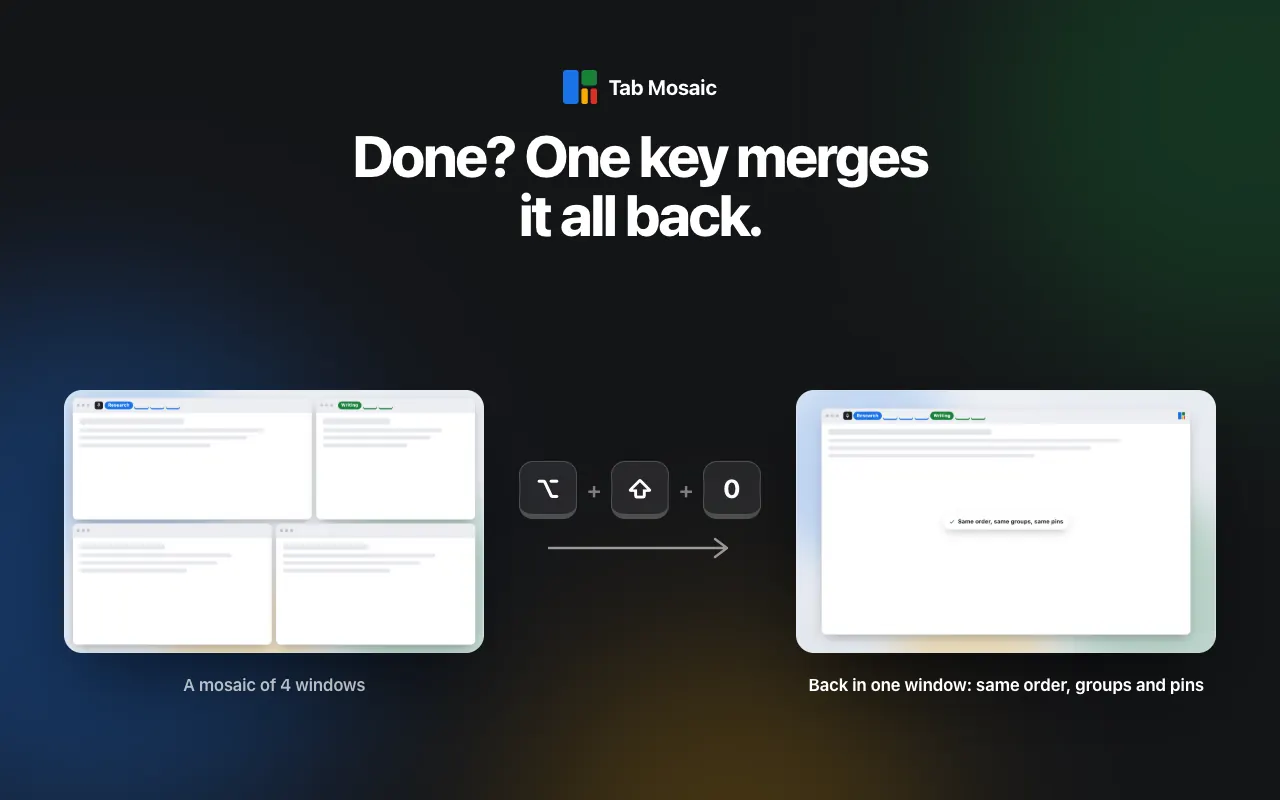
Merge back in one click or Alt+Shift+0: original window, order, groups, pins, size and position
Saved layouts: reopen an arrangement tomorrow or apply it to the tabs you have open; import and export as a file
Keyboard shortcuts: Alt+Shift+1 side by side, Alt+Shift+2 over and under, Alt+Shift+4 2×2, Alt+Shift+0 merge back
Right-click a tab → Add to mosaic
Interface translated into 51 languages
No network requests, no analytics, no accountworks offline
The long version
Chrome can split two tabs side by side. Tab Mosaic arranges your whole workspace: it tiles one window's tabs into a grid of windows — side by side, over and under, three columns, three rows, 2×2 or any grid up to 4×4 — on whichever monitor you pick, and fills that screen exactly, clear of the taskbar, Dock and menu bar. Most split-screen extensions can't see tab groups, so they scramble them; Tab Mosaic moves whole groups with their name, colour and collapsed state, never tears a group across windows, and keeps pinned tabs pinned. The popup draws your real screen with the windows the split will make, and you can drag tabs and groups between windows or drag the edges to resize before you split, so the preview is exactly what you get. One click, or Alt+Shift+0, merges everything back into the original window in the original order, with its groups, pins, size and position, including tabs you opened in the meantime. Name an arrangement and reopen it tomorrow, or apply it to the tabs you already have open. Keyboard shortcuts cover the common layouts, and the interface is translated into 51 languages. It makes no network requests, has no account and never reads page contents; showing page titles is optional.
Your data, plainly
What it uses
- Layouts and settings (stored locally)
Saved layouts (screen fractions, group names and colours, and page addresses only if you allowed page titles), your settings, and the state needed to merge a split back are stored in Chrome's extension storage on your device. They are never sent anywhere. - Usage counters (stored locally)
How many arrangements worked, on how many days, and your answers to the optional support and rating cards, used only to decide when to show them. They stay on your device.
Never collected
- Page contents — Tab Mosaic has no content scripts and never reads pages
- Browsing history, unless you turn on page titles, and even then it stays on your device
- Your Google account, name, email or any personal identifiers
- Analytics, telemetry or crash reports of any kind
Why it asks
Tab groups
Reads each tab group's name, colour and collapsed state, moves groups between windows and rebuilds them, so splitting and merging never loses a group. This is the extension's core job.
Displays (system.display)
Reads your monitors' positions and usable work areas so windows land exactly on the display you pick, clear of the taskbar, Dock and menu bar.
Storage
Saves your named layouts and settings on your device, and keeps the undo state for "merge back" in session memory so it survives a background restart. Also keeps a few local counters used to time an occasional optional support or rating card.
Context menus
Adds "Add to mosaic" to the tab right-click menu.
Tabs and favicons (optional)
Requested only if you turn on "Show page titles". It shows page titles and icons in the window picker and lets saved layouts reopen pages. Chrome describes it as "Read your browsing history". Everything else works without it, and you can turn it off in settings.
What’s new
- v1.0.0Oct 2026
Initial release. Grid layouts up to 4×4 on any monitor, group- and pin-preserving split and merge back, live preview with drag-to-arrange and resizable windows, saved layouts with import/export, keyboard shortcuts, Add to mosaic tab menu, an animated tour with a safe demo window, and 51 languages.
Questions, answered
Does Tab Mosaic keep my tab groups?
Yes, that's its main job. Every split and merge keeps each group's name, colour, collapsed state and tabs. A group always moves as a whole and is never split across windows, and pinned tabs stay pinned.
How do I put everything back in one window?
Click Merge back in the popup or press Alt+Shift+0. Every tab returns to the original window in the original order, with its groups and pins, and the window gets its size and position back. Tabs you opened in the meantime come back too.
Does it work with more than one monitor?
Yes. Pick the display from a map of your real monitor arrangement. Tab Mosaic handles monitors to the left of or above your main screen and different scaling, and remembers the last layout you used on each display.
How is it different from Chrome's built-in Split View?
Chrome's Split View puts two tabs side by side in one window, and Tab Mosaic points you to it when that's all you need. Tab Mosaic is for more panes, other monitors and saved layouts, with your tab groups intact.
Does it work on Linux?
Splitting and merging work everywhere. On Linux with Wayland the desktop doesn't let apps position windows, so the windows may stack; Tab Mosaic tells you when that happens. Chrome also won't make a window smaller than about 500×375, so very fine grids on small screens overlap.
Does Tab Mosaic collect any data?
No. It makes no network requests, has no account and never reads page contents. Layouts and settings stay on your device. Page titles are optional and only shown locally.