 Productivity
ShotFrame
Every pixel right. Nothing uploaded.
Full-page screenshots that never leave your computer
- New · no ratings yet
- v1.0.0
- 990 KB
- updated Oct 2026
- by Ilias El Barhoumi
See it in action
What it does.
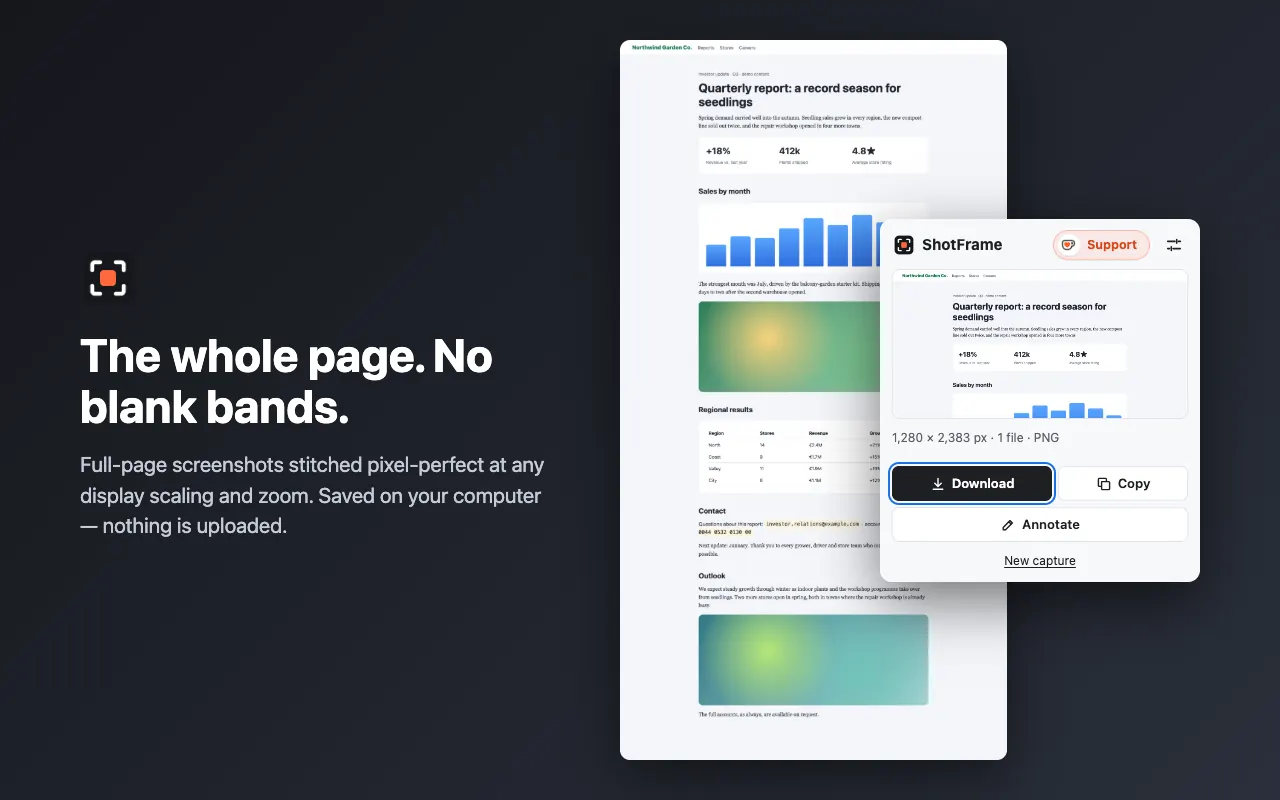
Full page screenshot: the whole page, top to bottom, stitched with no blank bands and no repeated strips
Visible area: exactly what you see, in one click or one shortcut
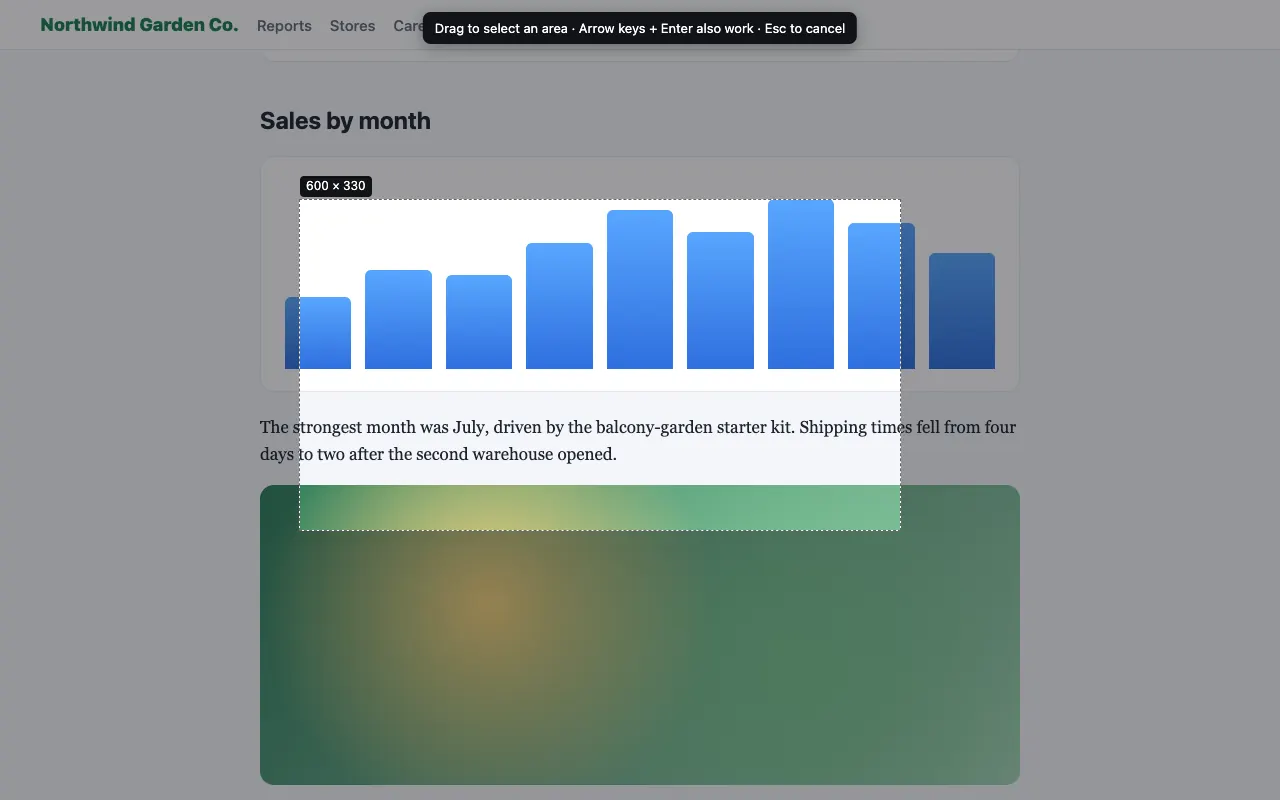
Select an area: drag a rectangle, or use the arrow keys
Pick an element: click any part of a page to capture just that, including panels that scroll inside web apps
Pixel-correct at any display scaling (Retina, 125 %, 150 %, 200 %, 300 %) and any browser zoom
Every capture is checked before you get it: a stale or wrong screen is taken again, and a broken image is never delivered
Sticky headers appear once instead of on every screen, lazy-loaded images are loaded first, and your scroll position is put back
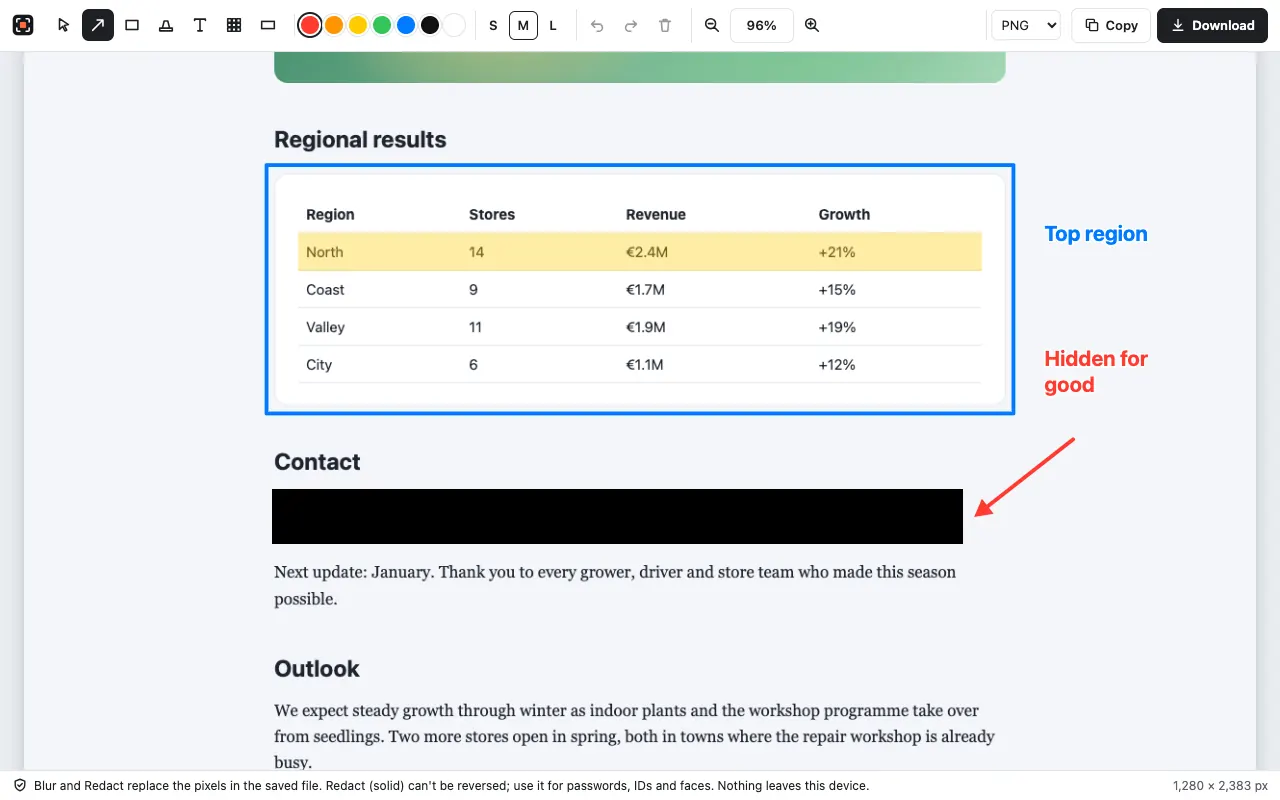
Annotate with arrow, box, highlight and text, in colours and three sizes, with undo and redo
Blur and Redact are burned into the saved image, not a layer; Redact is a solid box for passwords, account numbers and faces
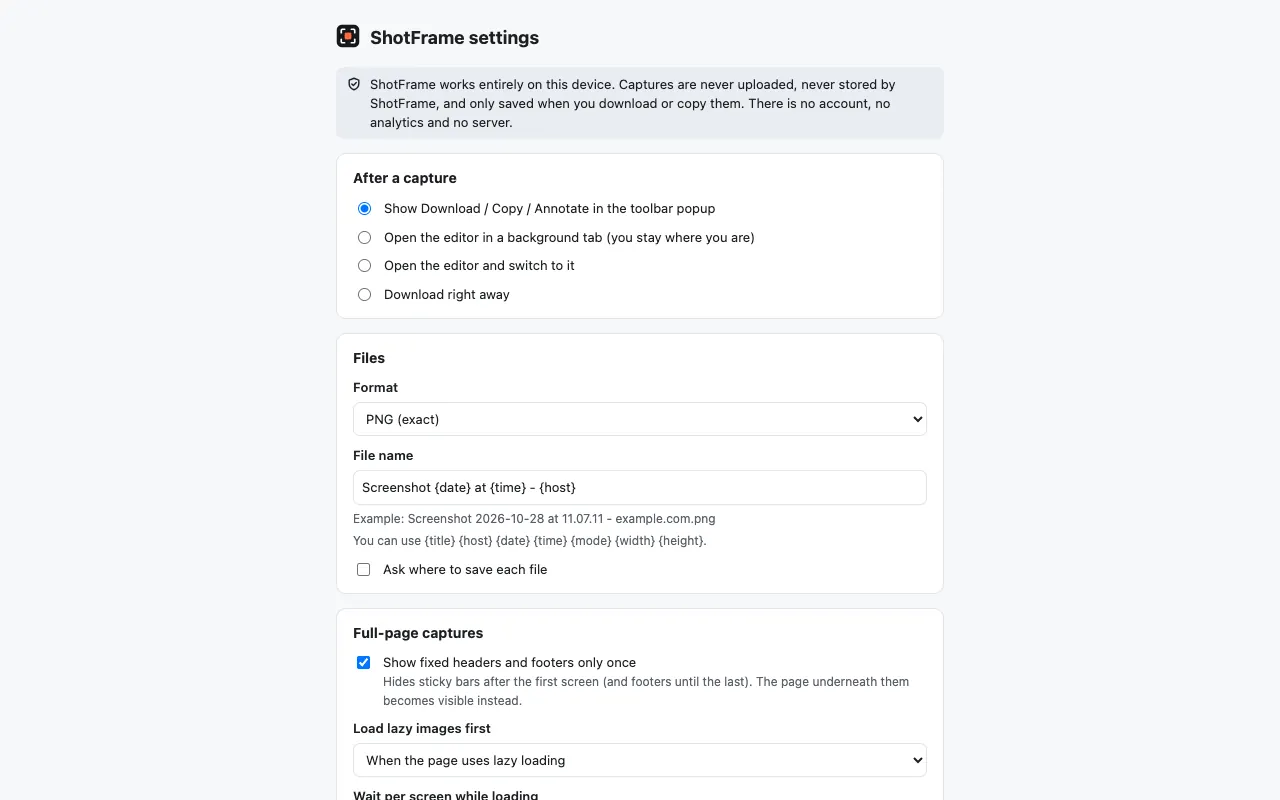
Save as PNG, JPEG or WebP, or copy to the clipboard, with your own filename pattern (page title, site, date and time)
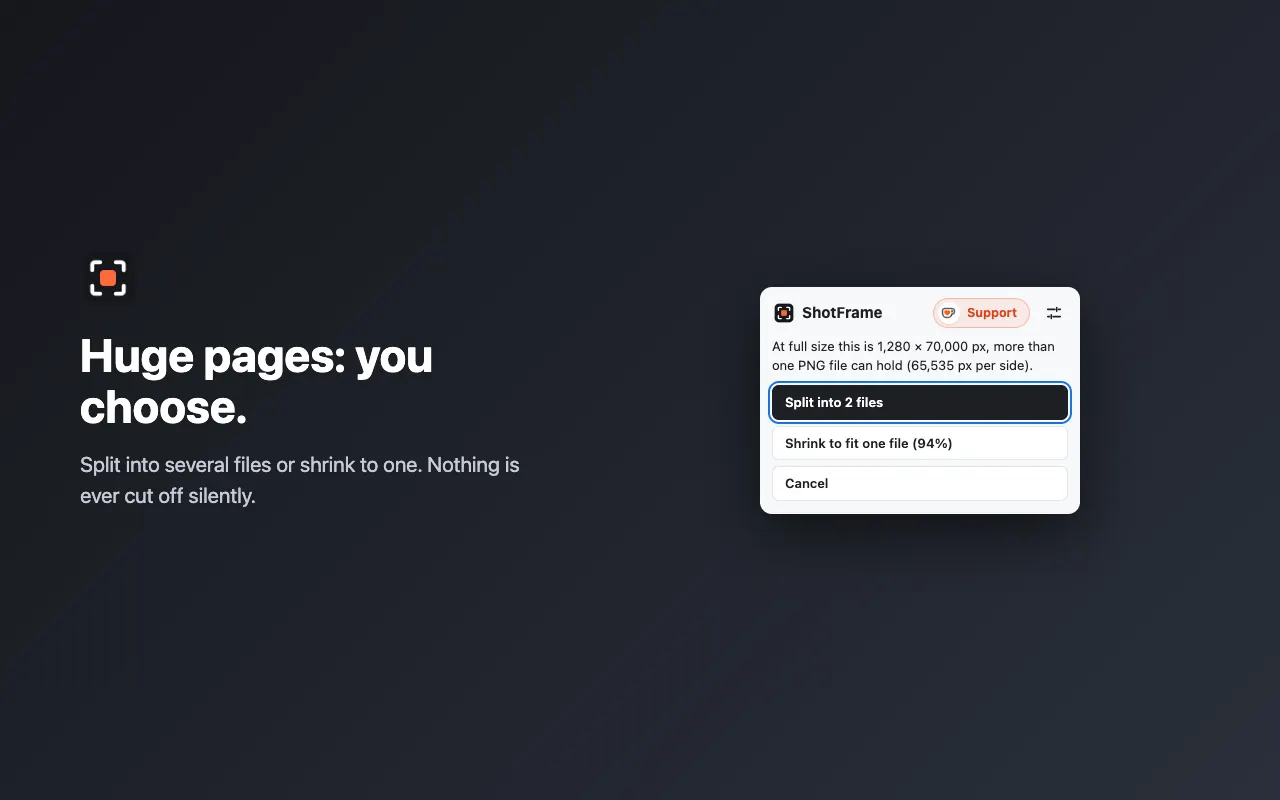
Very tall pages: see the progress, then split into several files or shrink to one; nothing is cut off silently
Keyboard shortcuts: Alt+Shift+V visible area, Alt+Shift+F full page, Alt+Shift+R select an area, Alt+Shift+S open ShotFrame
Light and dark mode, full keyboard control, and the interface in 51 languages
No upload, no account, no watermark, no ads, no analytics; the only install warning is "Manage your downloads"
The long version
ShotFrame takes screenshots of the tab you are on and keeps them on your computer. Capture the visible area in one click or one shortcut, the full page from top to bottom, an area you drag out (or set with the arrow keys), or a single element you click, including panels that scroll inside web apps. Full-page captures are stitched pixel-correct at any display scaling (Retina, 125 %, 150 %, 200 %, 300 %) and any browser zoom, with no blank bands and no repeated strips: every screen overlaps the last one slightly, the overlap is cropped rather than padded, and each screen is checked before it is drawn. If Chrome hands back a stale frame, ShotFrame makes the page redraw and takes it again; if a capture still can't be made correctly, it tells you instead of giving you a broken image. Sticky headers appear once instead of on every screen, lazy-loaded images are loaded first, and your tab and scroll position are put back exactly as they were. The editor adds arrows, boxes, highlights and text, in colours and three sizes, with undo and redo, and Blur and Redact are burned into the saved pixels rather than added as a layer someone can remove. Save as PNG, JPEG or WebP with your own filename pattern, or copy to the clipboard; very tall pages show their progress and let you split them into several files or shrink them to one, and nothing is ever cut off silently. ShotFrame has no server and makes no network requests: captures stay in memory until you save or copy them, there is no account, no watermark, no ads and no analytics, and the only permission Chrome asks you about is "Manage your downloads". It is free, with an optional Ko-fi tip, and the interface is translated into 51 languages.
Your data, plainly
What it uses
- Settings (stored locally)
Your preferences, such as file format, filename pattern and theme. Kept in Chrome's extension storage on your device and never sent anywhere. - Usage counts (stored locally)
When ShotFrame was installed, how many captures completed, on how many days, and when the last capture worked or failed, plus your answers to the optional rating and Ko-fi notes. Used only to decide when to show those notes. Numbers and times only, with no pages and no images. They stay on your device. - Capture in progress (memory only)
While a capture is running or open in the editor: its status, and the page title and address used for the filename. Held in Chrome's session storage, in memory, and cleared when Chrome closes.
Never collected
- The screenshots you take — they stay in memory until you download, copy or edit them, are never written to the extension's storage, and are discarded when you close the editor, start a new capture, or after 15 minutes
- The content of the pages you capture — nothing is read beyond what the screenshot needs
- Browsing history — ShotFrame can only see a page after you click its button or shortcut on that page, and keeps no list of pages
- Your Google account, name, email or any personal identifiers — there is no account
Why it asks
Manage your downloads (downloads)
Saves your screenshot to your Downloads folder, or wherever you choose. This is the only permission Chrome asks you about when you install ShotFrame.
Active tab (activeTab)
Lets ShotFrame capture and measure only the tab where you clicked its button or pressed its shortcut, and only after you did. There are no host permissions, so it cannot see any other page.
Scripting
On that tab only, after your click: measures the page, scrolls it for full-page captures, shows the area and element selector, and puts everything back afterwards.
Offscreen
Assembles the screenshot tiles on a canvas and holds the finished image in memory until you save or copy it, because Chrome's background service worker has no canvas.
Storage
Remembers your settings (format, filename pattern, theme), a few local usage counts, and the status of a capture in progress. Never image data.
What’s new
- v1.0.0Oct 2026
Initial release. Visible area, full page, select an area and pick an element; pixel-correct stitching at any display scaling and zoom, with every screen checked; arrow, box, highlight, text, blur and redact; PNG, JPEG or WebP, or copy to the clipboard; split or shrink very tall pages; keyboard shortcuts; light and dark mode; an optional Ko-fi link and a rare rating note; the interface in 51 languages.
Questions, answered
Does ShotFrame upload my screenshots?
No. Screenshots are made and processed entirely inside your browser and held in memory until you save or copy them. ShotFrame has no server and contains no code that sends anything over the network.
Why don't its full-page screenshots have blank bands or repeated strips?
ShotFrame works in the page's own device pixels, which already include display scaling and browser zoom, overlaps every screen slightly and crops the overlap, and checks each screen before drawing it. A stale screen is taken again, and if a capture still can't be made correctly, ShotFrame tells you instead of saving a broken image.
Which permissions does it need?
activeTab, scripting, offscreen, downloads and storage, with no host permissions. The only warning Chrome shows at install is "Manage your downloads", which ShotFrame uses to save your screenshots.
Should I use Blur or Redact for passwords?
Redact. Both are burned into the saved pixels, not added as a layer, but Blur pixelates while Redact is a solid box that cannot be reversed.
What happens with a very long page?
ShotFrame shows the progress, and if the result is too big for one file in the format you chose, it asks whether to split it into several files or shrink it to one. It never cuts a page off silently.
Can it capture a panel that scrolls inside a web app?
Yes. Use Pick an element and click the panel: ShotFrame scrolls it and captures all of its content.
Is ShotFrame free?
Yes, with no ads and no watermark. If it saves you time, you can leave an optional tip on Ko-fi from the settings page.